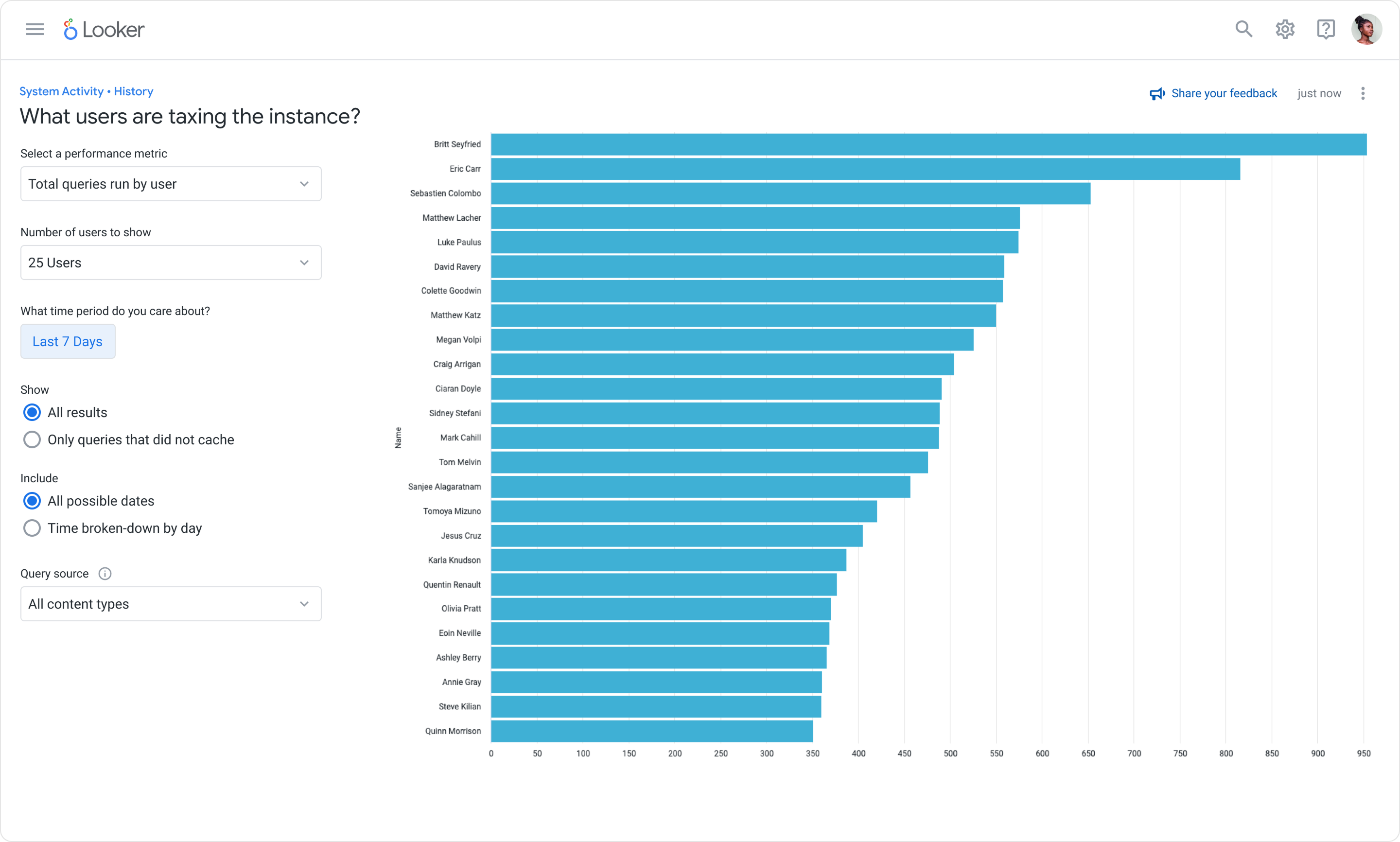
As an Interaction Designer at Google, I led Guided Analysis design from the design phase through launch. I shaped the full experience, including analysis discovery, question and answer controls, automatic query updates, visualization, the transition to Explore, and saving results to Looks and dashboards.
Making complex analysis easier to enter
System Activity exposed rich information about users, content, queries, and performance, but answering operational questions still required knowing how the model was organized. I designed Guided Analysis around questions admins already asked: who was active, what content was taxing the instance, how user behavior differed by role, and how usage changed over time. Each analysis presented only the inputs needed for that question.
From question to deeper analysis
- Choose. Start with a guided question in the History Explore or its Quick Start menu.
- Refine. Adjust metrics, timeframes, and prebuilt options as the analysis reruns automatically.
- Continue. Explore from Here to add fields, pivots, or filters, or save the result to a Look or dashboard.
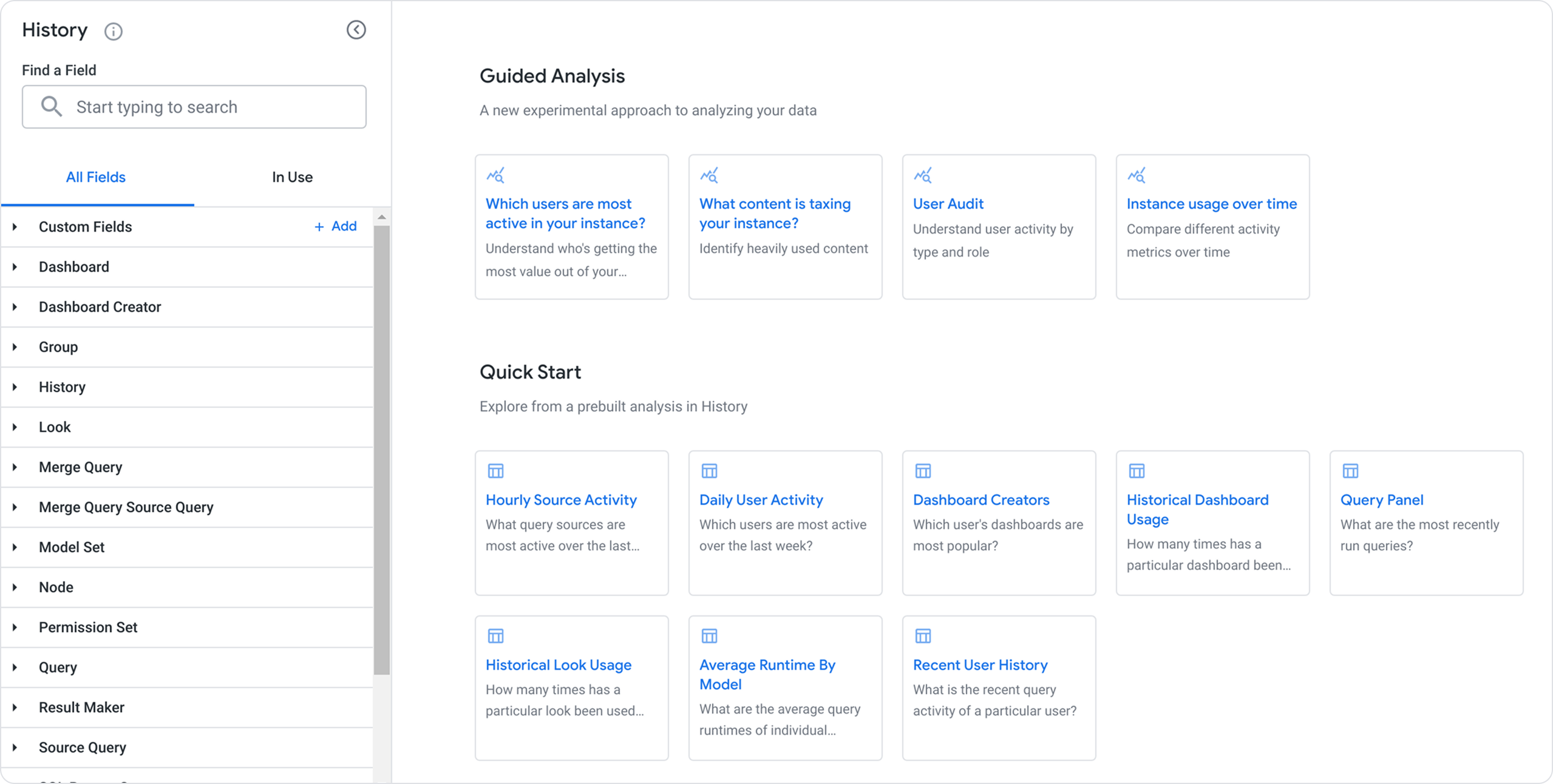
Guidance without a dead end
Guided Analysis had to simplify the first step without limiting what experienced users could do next. I designed the guided layer as an entry point into Looker’s existing analytical system. Every answer retained a path into Explore, where people could inspect and extend the underlying query.
The same result could be refreshed, added to a dashboard, saved as a Look, downloaded, sent, or scheduled. This connected a focused question-and-answer experience to the broader workflows teams already used to investigate and share data.